> ## Documentation Index
> Fetch the complete documentation index at: https://docs.luly.ai/llms.txt
> Use this file to discover all available pages before exploring further.
# Webhooks
 ## Introduction
This is a quick tutorial to help you set up and test your Luly AI webhook. We’ll include instructions both for inbound and outbound phone calls.
We’ll start with inbound because it’s more popular.
## Step 1: Create your webhook
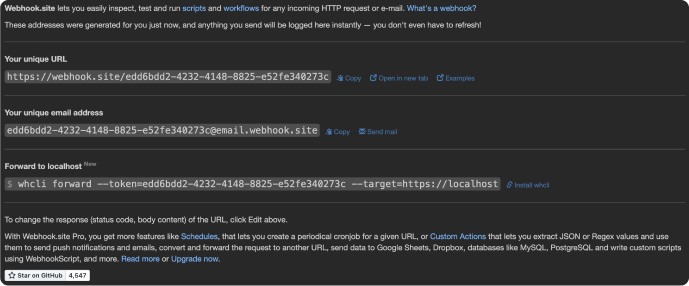
To create a test webhook visit [Webhook.site](https://webhook.site/#!/view/d5af31ba-ef84-4491-ae32-c7394bd0a989)
The website will automatically provide you a unique webhook URL.
## Step 2: Connect to your inbound phone number
Open your [developer portal](https://portal.luly.ai) and visit the [inbound phone numbers](https://portal.luly.ai) page.
Paste your webhook into the `webhook` field. Make sure to remove the initial `https://` when you insert the URL. Then click `test webhook`.
## Step 3: Verifying your outputs
Navigate to webhook.site page, and check if the test webhook fired correctly. You’ll know it worked because a new record will populate.
## Introduction
This is a quick tutorial to help you set up and test your Luly AI webhook. We’ll include instructions both for inbound and outbound phone calls.
We’ll start with inbound because it’s more popular.
## Step 1: Create your webhook
To create a test webhook visit [Webhook.site](https://webhook.site/#!/view/d5af31ba-ef84-4491-ae32-c7394bd0a989)
The website will automatically provide you a unique webhook URL.
## Step 2: Connect to your inbound phone number
Open your [developer portal](https://portal.luly.ai) and visit the [inbound phone numbers](https://portal.luly.ai) page.
Paste your webhook into the `webhook` field. Make sure to remove the initial `https://` when you insert the URL. Then click `test webhook`.
## Step 3: Verifying your outputs
Navigate to webhook.site page, and check if the test webhook fired correctly. You’ll know it worked because a new record will populate.
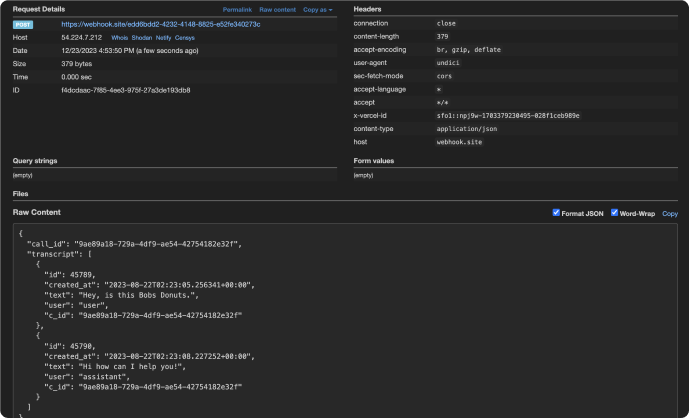 At this point, if your record fails to populate, double check that you provided the correct URL - and that you REMOVED the initial `https://` from it.
## Step 4: test a live phone call
Call your inbound phone number. Once it ends, visit the Webhook site and confirm once again that a new record populated.
If that’s working, then you’re set!
## Step 5: Testing for outbound calls
To test for outbound calls, once again create your webhook by referring back to step 1.
Then, follow the [send phone call](https://docs.luly.ai/api-reference/basic/sendCall) docs to create and send a phone call. Make sure you include the `webhook` as a parameter in your request. After, confirm that the webhook data populated on your webhook site page.
At this point, if your record fails to populate, double check that you provided the correct URL - and that you REMOVED the initial `https://` from it.
## Step 4: test a live phone call
Call your inbound phone number. Once it ends, visit the Webhook site and confirm once again that a new record populated.
If that’s working, then you’re set!
## Step 5: Testing for outbound calls
To test for outbound calls, once again create your webhook by referring back to step 1.
Then, follow the [send phone call](https://docs.luly.ai/api-reference/basic/sendCall) docs to create and send a phone call. Make sure you include the `webhook` as a parameter in your request. After, confirm that the webhook data populated on your webhook site page.